Screen Setup
Modified on: Thu, 12 Feb, 2026 at 12:49 PM
EasyWorship is designed for extended desktop display. That means you can have a monitor that contains only the control screen for EasyWorship and another monitor, like a projector or TV that displays the output for the audience, and, or the foldback content for people on the stage.
Basic Hardware Requirements for Extended Desktop
- A single video card with two or three video outputs that supports two or three extended desktops. (NVIDIA RTX Video Card Recommended)
- A laptop with a video output connection. (VGA, DVI or HDMI) (NVIDIA RTX Video Card Recommended)
Enable Windows Extended Desktop
The first step in the process of setting up your screens for use with EasyWorship is to extend the Windows desktop to the screens you will be using.
- Open EasyWorship.
- Click on the Edit menu.
- Click Options.
- The Options dialog box appears.
- Click the Monitor Setup button toward the middle right-hand side.

- EasyWorship will open the Display Settings window.
- Find the Multiple Displays drop-down toward the right side under the monitor boxes.
- Select the Extend these displays or Extend desktop to this display from the drop down list.

- Select the Resolution from the Resolution drop-down box.
NOTE: Usually the recommended settings will work, but you may need to check documentation for your projector or TV to verify what resolution it supports. - Make sure to click Keep Changes if you see either on the screen.
- Now you need to set up EasyWorship to use the extended desktops you've enabled. To do this, follow the instructions below.
Enable Mac Extended Desktop
The first step in the process of setting up your screens for use with EasyWorship is to extend the Mac desktop to the screens you will be using.
- Open EasyWorship.
- Scroll your mouse up to the top to reveal the Mac Menu Bar.
- At the top-left, click on the EasyWorship menu.
- Click Settings.
- The Settings dialog box appears.
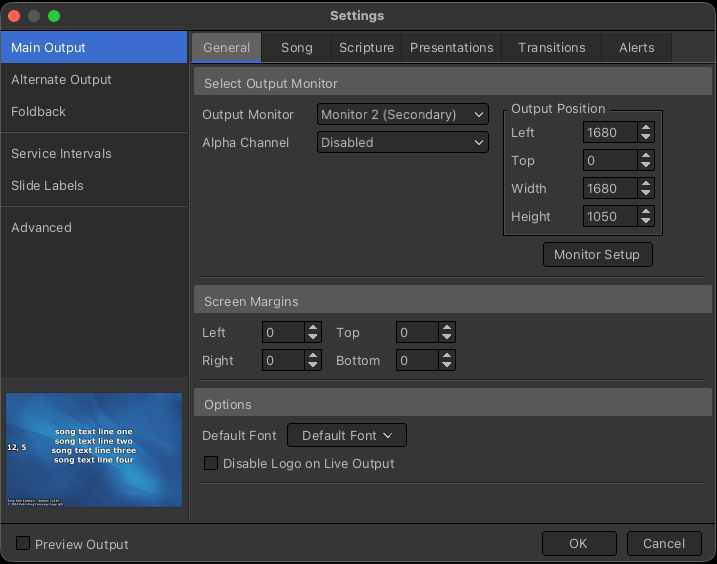
- EasyWorship will open the Displays window.
- Find the Use as drop-down on the right-hand side under the monitor boxes.
- Select Extended display in the drop-down list.
(If Mirror is selected, you will need to click on Stop Mirroring, then click on Extended display.)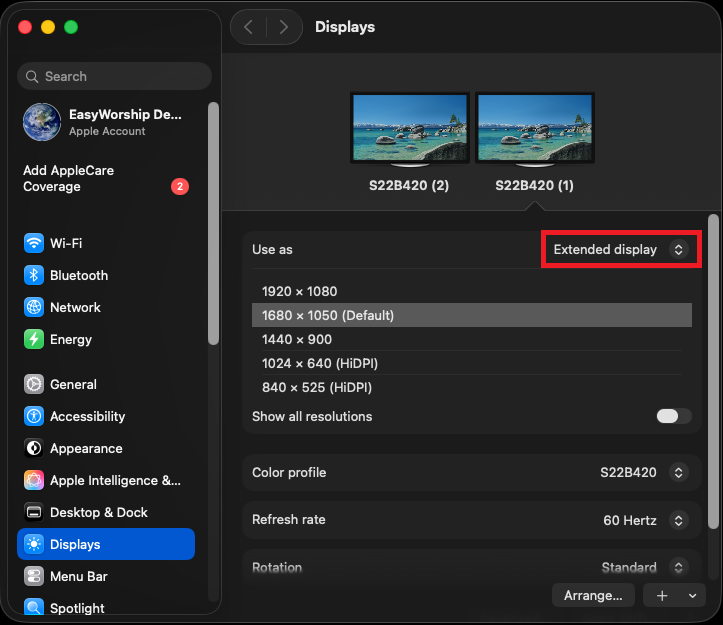
- Select the correct resolution from the list.
NOTE: Usually the Default recommended settings will work, but you may need to check documentation for your projector or TV to verify what resolution it supports.
- Now you need to set up EasyWorship to use the extended desktops you've enabled. To do this, follow the instructions below.
Setting Up EasyWorship To Use Your Second Monitor
EasyWorship will normally find the secondary display and automatically send the output to that screen. However, you may need to set up the output screen manually. The instructions below will walk you through the process.
Windows
- Open EasyWorship
- Click on the Edit menu.
- Click Options.
- The Options dialog box appears.
- Click the Output Monitor dropdown and select the one that has Secondary in parenthesis.
- If you are using a third screen for Foldback, click the Foldback option on the left and select the output monitor you wish to use for Foldback.
- Click OK.
Mac
- Open EasyWorship.
- Scroll your mouse up to the top reveal the Mac Menu Bar.
- At the top-left, click on the EasyWorship menu.
- Click Settings.
- The Settings dialog box appears.
- Click the Output Monitor dropdown and select the one that has Secondary in parenthesis.
If you are using a third screen for Foldback, click the Foldback option on the left and select the output monitor you wish to use for Foldback.
Click OK.
Dual Monitor Troubleshooting
| ISSUE | CAUSE | RESOLUTION | |
| 1. | I see the same thing on my second monitor as I see on my primary monitor. | Your Windows or Mac desktop has not been extended to the second monitor. | Enable the Windows or Mac Extended Desktop. See the instructions listed above in this article. |
| 2. | I enabled the Windows Extended Desktop, but it disables itself after I apply the setting. | You have an Intel Graphics card or you do not have your projector connected to your secondary video port, or the projector is not turned on. | Use the instructions in the Intel Graphics Monitor Setup to enable the Windows Extended Desktop for your Intel Graphics card. Connect your projector or secondary monitor to the secondary monitor port on your graphics card and make sure that the monitor, or projector, is turned on. |
| 3. | Windows or Mac Extended Desktop is enabled, but EasyWorship still displays the output on my primary monitor. | The secondary monitor is not selected as the output monitor in EasyWorship. | Windows: Click the Edit menu, then Options. In the settings, Select Monitor 2 (Secondary) for the Output monitor. Click OK. Mac: Scroll your mouse up to the top reveal the Mac Menu Bar. At the top-left, click on the EasyWorship menu. Click Settings. Select Monitor 2 (Secondary) for the Output monitor. Click OK. |
If you still need further assistance, please contact EasyWorship Support.